Networking is a massive part of your homelab. Let's cover some basics...
This page will touch on the basic aspects in each topic at a very high level. Each topic is worth digging deeper into, but the goal here is to have just enough info to get started.
Fist, pick a project. A few ideas are: plex server, pihole, vpn, docker containers, portainer, home assistant, or uptime monitoring software. Next you need something to be your first "server". Just about any old computer or laptop will do. The Raspberry Pi is great for a tiny server. After you get your first server it will need to be connected to the network. If you want to create a standalone network all you need is a network switch. You may not need to buy anything at all to get started. If you have a few ports available on your "internet box", you can start there until you run out of ports.
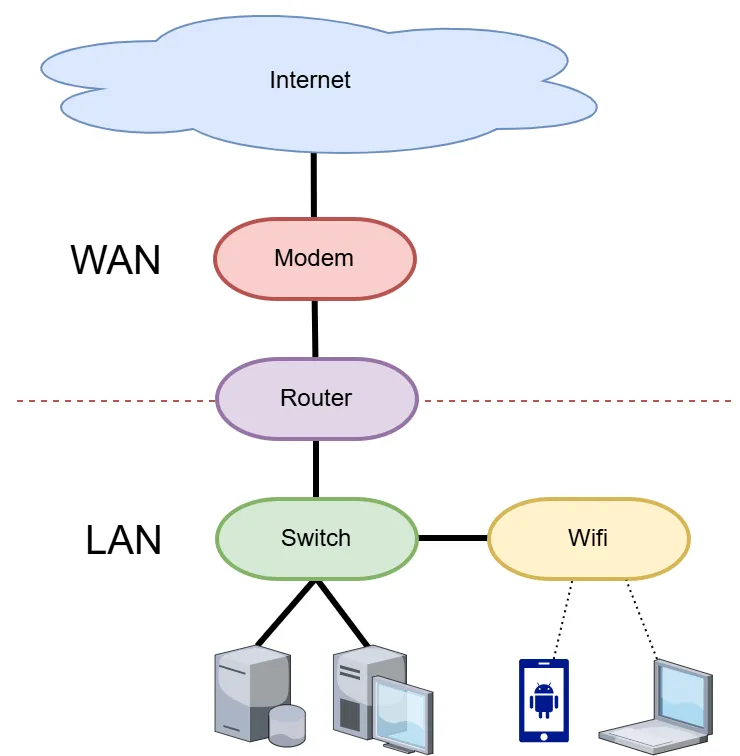
When you break it down, most networks look like this. Your modem connects to your ISP's (Internet Service Provider) infrastructure and the internet. Routers connect networks - in this case the public internet network with your homelab network / LAN (Local Area Network). LAN commonly refers to "your network". WAN means WIDE Area Network. Your modem will always plug into your router's WAN port.
Would you believe that all the infrastructure in the above diagram is in this photo? Shocking right? This is the wonder of the ISP provided "Gateway" device. Gateways combines the modem, router, wifi, switch, and bloat you never asked for - all in one!
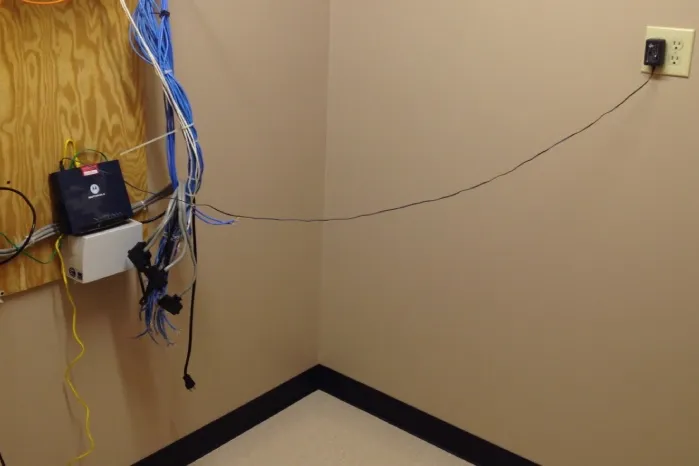
This old setup from 2012 was in a rural area with crappy DSL service to boot!
While your ISP's device will get you online, there are many settings that are intentionally disabled or set to restrictive values to benefit the ISP.
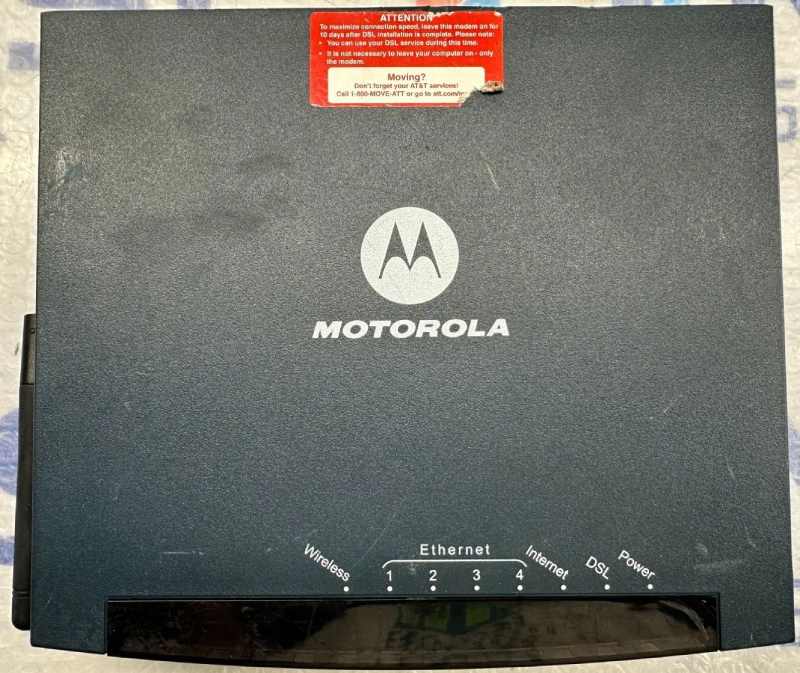
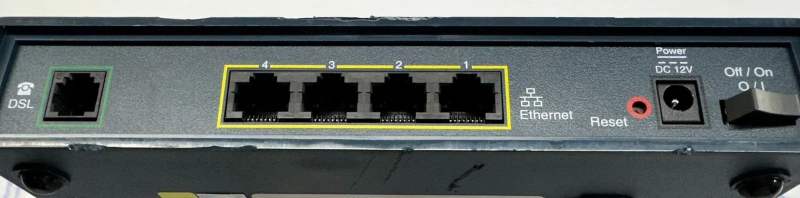
Yes this device has wifi - does the wifi suck in this device? Also, yes!
There are 4 ethernet ports so there must be a switch integrated. Neat!
Here is my first "homelab network" from ~2004 consisting of a single 5-port 1gig switch.
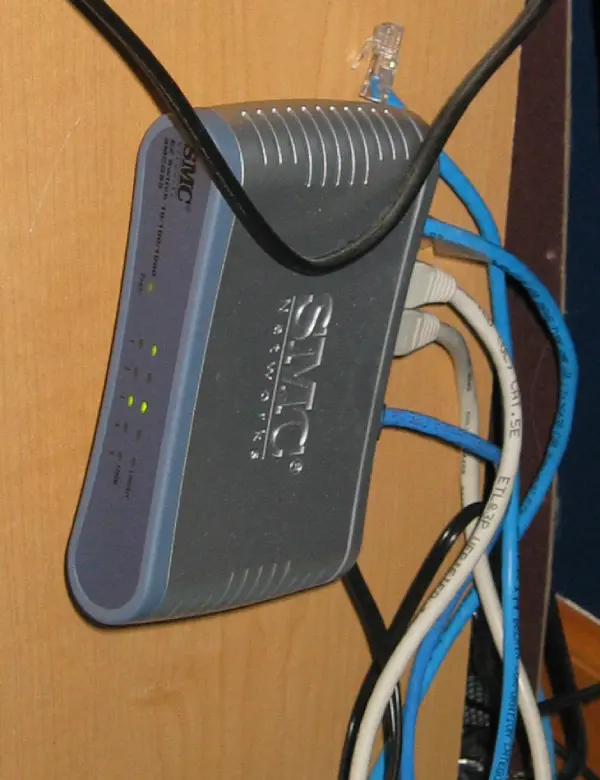
Your first home network does not need to be glamorous - it needs to work and hopefully you will learn a few tricks along the way!!
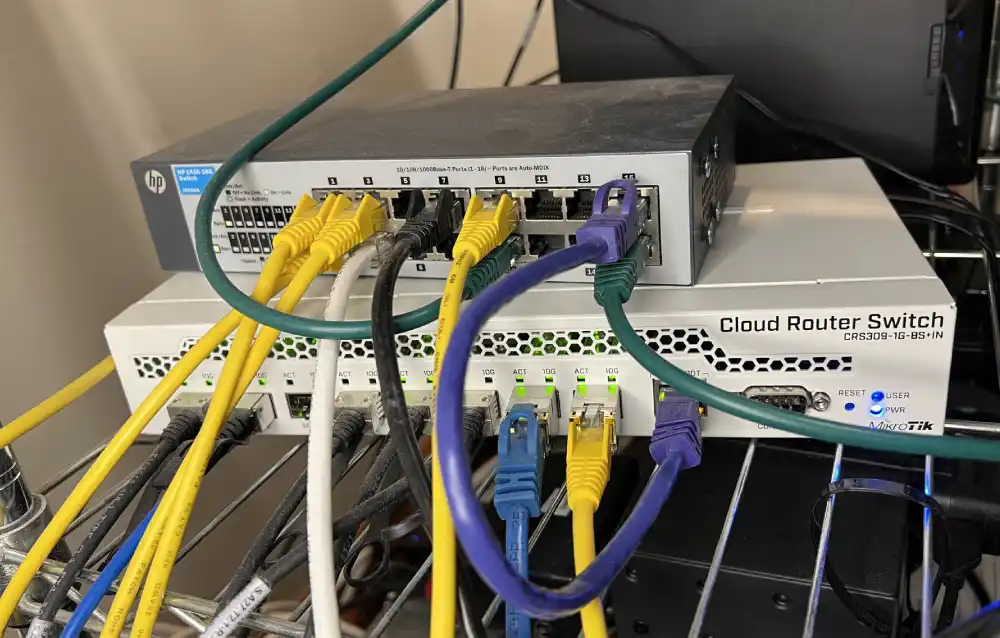
This little shelf was my homelab "network core" for many years.
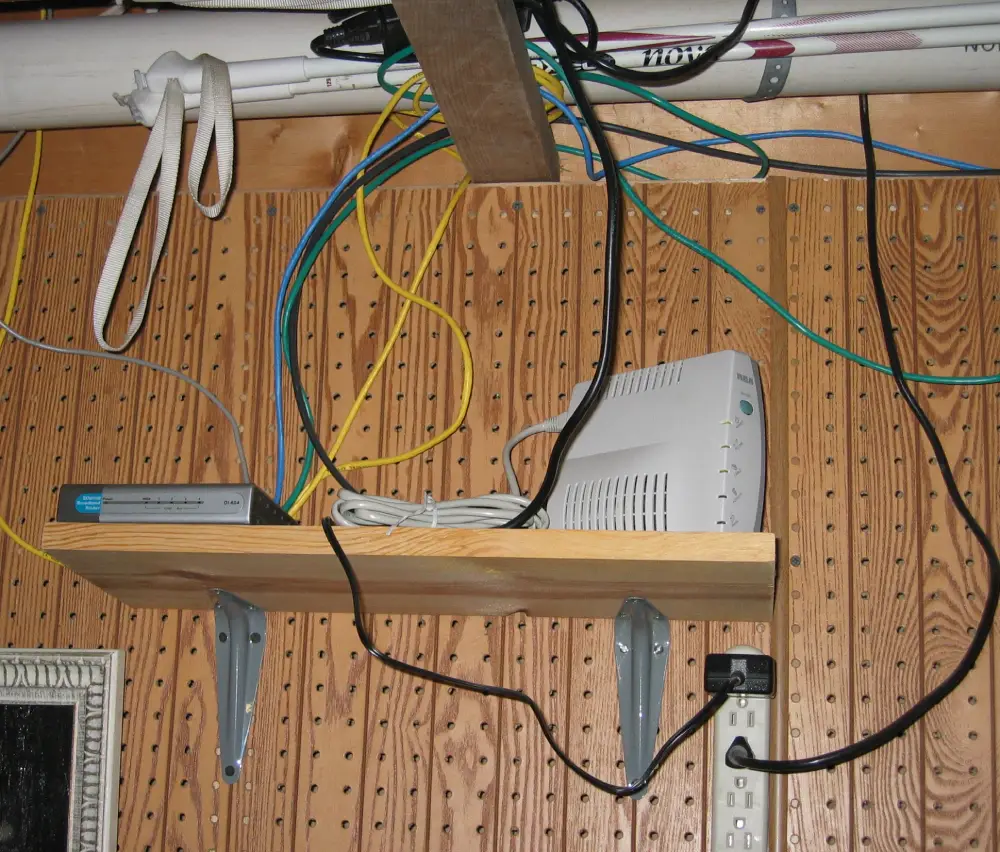
The first step when taking control of your network is to replace the ISP provided device! Sometimes this is not an option, and in that situation you may be able to place the gateway into "pass through mode". This means the traffic from the WAN is passed directly through the gateway to your router effectively disabling the routing functionality.
Most ISP's make you pay to rent their gateway. Replacing the ISP device will provide a more robust network and it will be cheaper in the long run!
Below, find a sample network setup. In this case I could not replace the ISP device so it was placed into pass through mode.
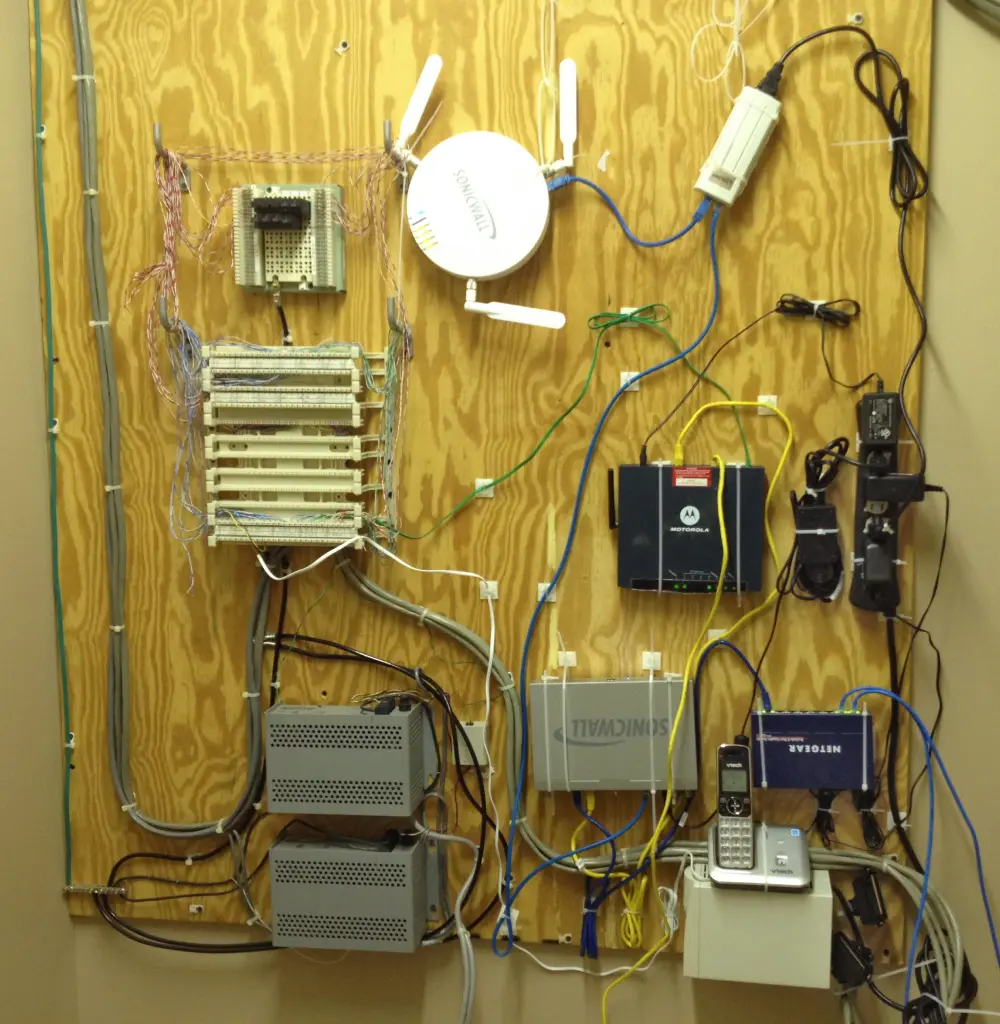
This photo shows all the components from the diagram above!
At the time Sonicwall devices were popular. Before private equity took over. I don't recommend Sonicwall anymore.
Take note of the mounting style. The plywood against the wall is called a backer board. Zip ties and cable anchors were used to mount everything. The adhesive on the anchors didn't hold so I had to run a screw through the anchors.
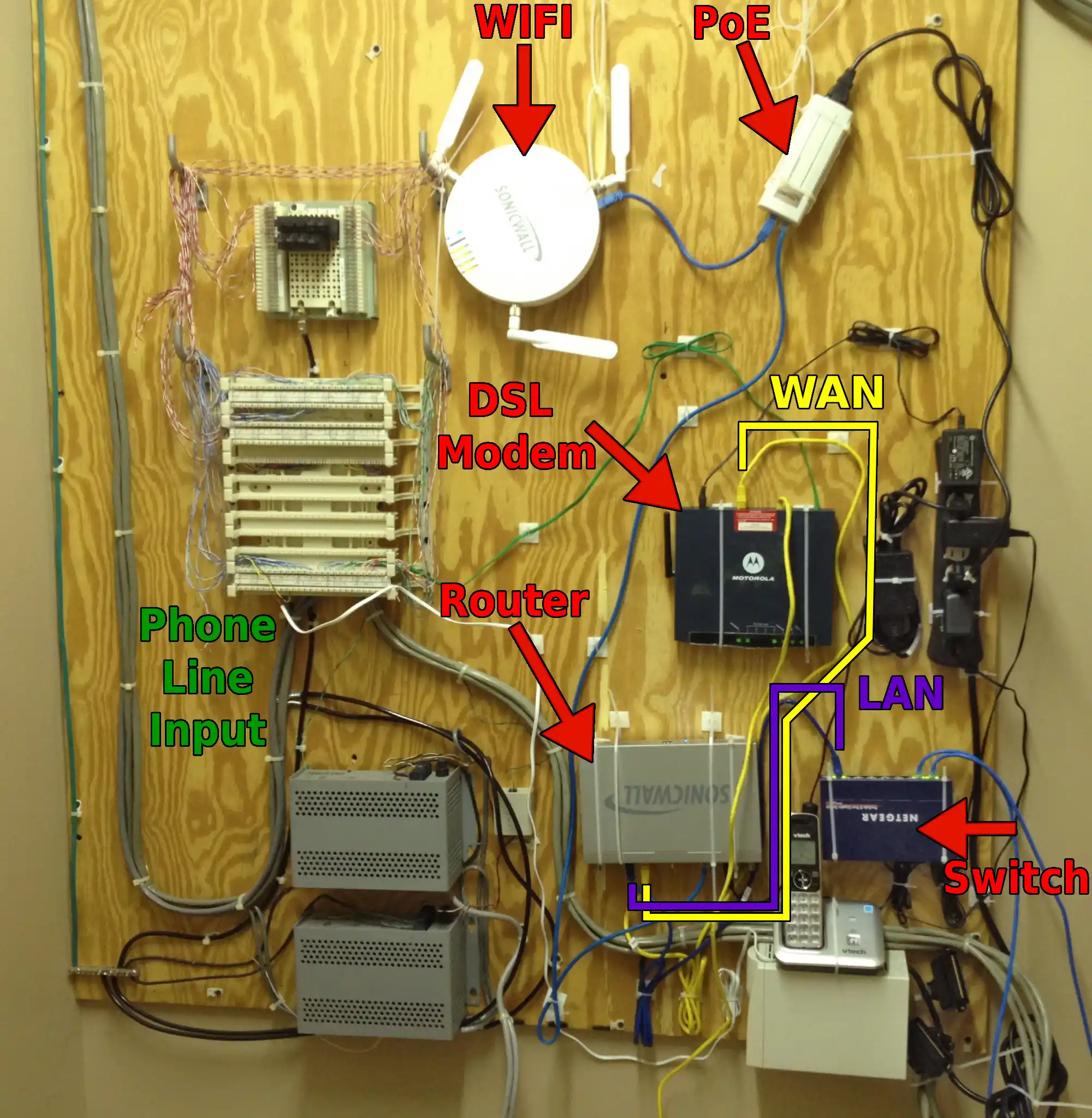
The modem (short for modulator-demodulator) is the device that connects to your service provider. If it is a standalone device you will have an ethernet port on the back to plug your router into. Modems are different for the medium carrying the signal. For example: Fiber, Cable, Cellular/5G, Satellite, DSL, Dialup and more! The role of the modem is to connect to the medium your ISP uses and get you online. Fiber "modems" are typically called an ONT / Optical Network Terminal.
Your ISP should have a list of devices compatible with their service. Cable modems must match your ISP's infrastructure. Whether you are using DOCSIS 2, 3, or 3.1 will drastically change your resulting speeds. In my area in 2023 Xfinity/Comcast started offering "mid-split" or "enhanced" service that increased the upload speeds from 30mbit to 300mbit. However this was only if you used their modem or a modem from their very short list of approved modems.
For example here is Xfinity's list.
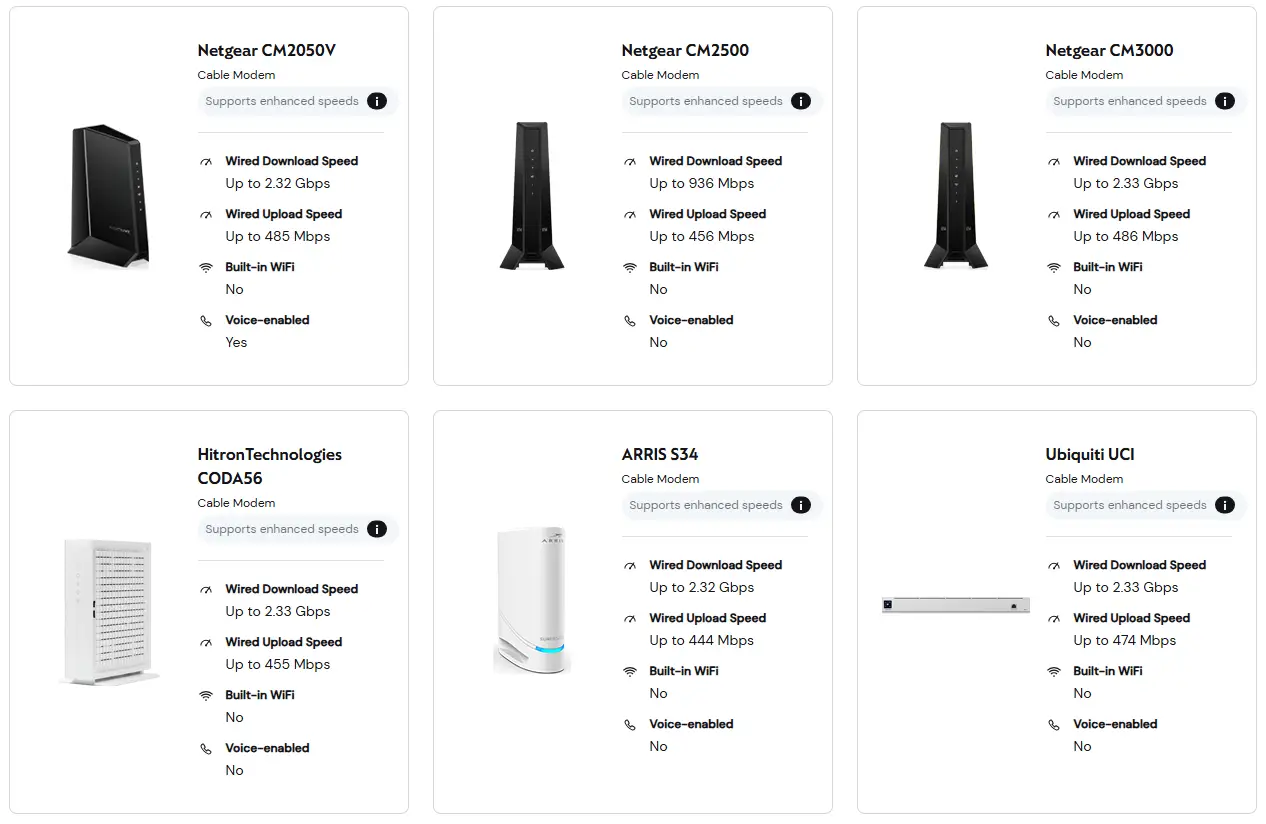
A router connects 2 networks and provides routing services between them. Like your home LAN & the public internet / WAN. It will also run critical services required for network connectivity and internet access like DHCP and DNS.
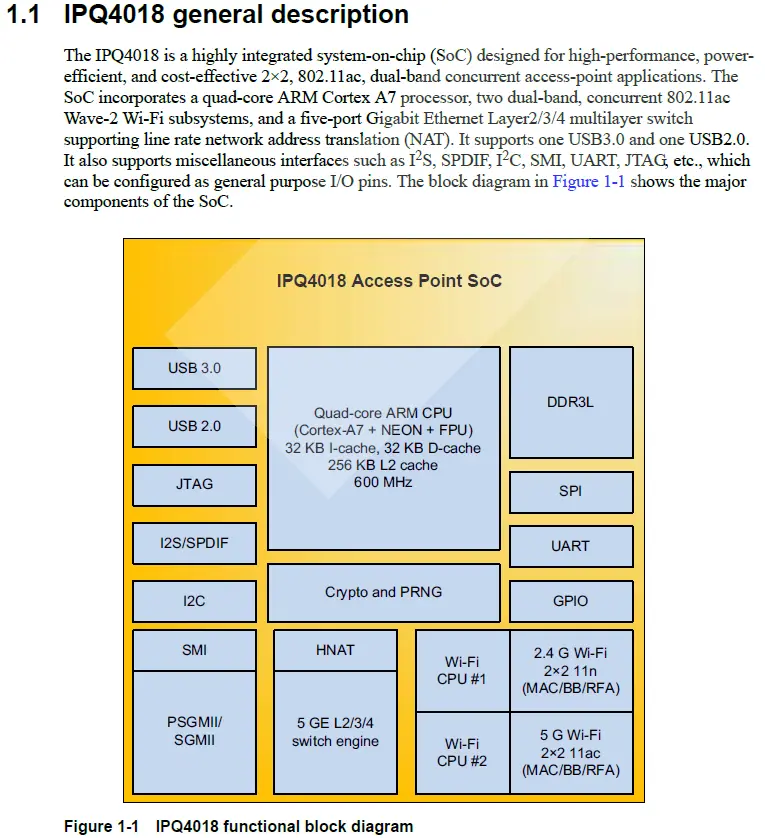
Routers are specialized devices built using special processors called a SOC or System-On-Chip. These are purpose built processors with specific functions like integrated processor, network interface, switch, crypto accelerator, and wifi. Most consumer routers follow this pattern.
I mention this SOC business so you know how to dig deep and compare routers. To compare routers you must know their guts. Googling reveals what chips are inside your device and allows you to fully understand the capabilities and performance. Many devices are made from the same exact chips and you can grab the cheaper option in that case.
Consumer routers are generally very efficient and will work fine for any homelab. There is no critical reason you should replace your existing router for your homelab. Replacing your router is great to learn networking concepts and can be fun to play with open source options.
Here is the Qualcomm IPQ4018 SOC block diagram showing all the major components
Linux & BSD based operating systems have full network stacks that are commonly used to build open source routers. OpenWRT runs on many SOC based devices. OPNsense can run on any x86 computer.
If your router is on OpenWRT's Table of Hardware, then you can replace the stock firmware with the open source openwrt firmware.
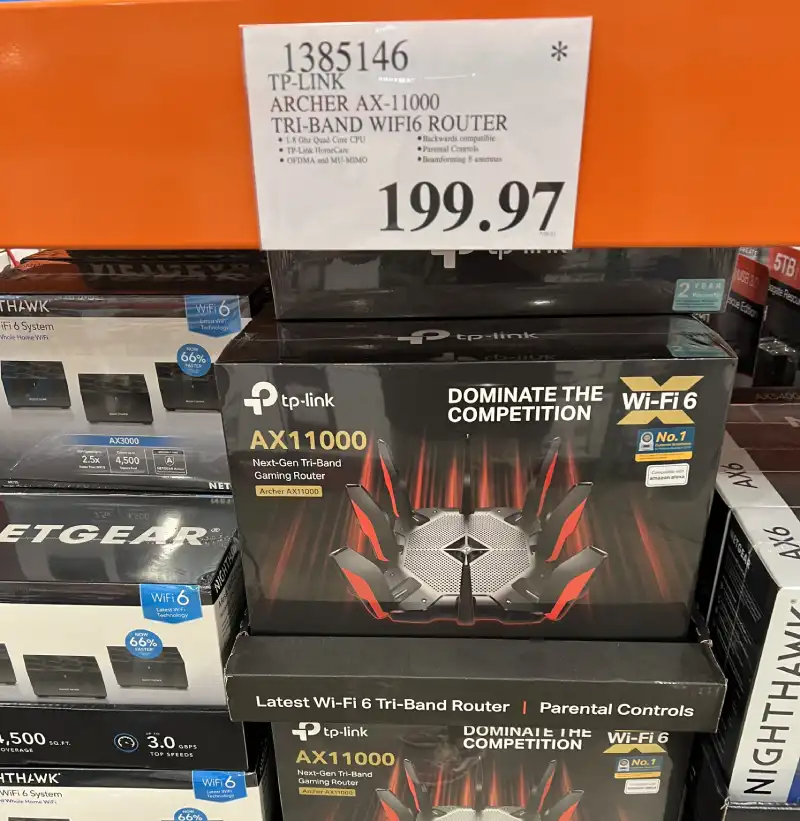
The TP Link AX11000 pictured above uses a broadcom BCM4908 SOC. Unfortunately this is not present on the OpenWRT TOH. (According to https://wikidevi.wi-cat.ru/TP-LINK_Archer_AX11000)
Some vendors specifically advertise OpenWRT support. Some SOC manufacturers like Broadcom do not release documentation on their chips and cannot be as easily ported to OpenWrt.
Around 2024 OpenWRT built their own device called OpenWrt One. Its great that you can use open software and open hardware. The open hardware aspect is a bit of a misnomer because the SOC itself usually remains a black box.
The limitation on the OpenWrt One is the 1gig ports.
The Banana Pi BPI-R4 uses a newer Mediatek SOC that supports 10gig. ($390 on Amazon
Youtuber Tomaž Zaman made a router called Mono.si which supports 10gig speeds.
If you already have a router you're "stuck" with - it will work just fine.
OPNsense is a FreeBSD based software router stack for running a router on any x86 hardware. Any old desktop computer (or virtual machine) can probably run OPNsense.
Routers need a LAN and WAN port - so at minimum you will want to add a 2-port NIC (Network Interface Card).
Check out this OPNsense.org guide to get started: https://OPNsense.org/get-started/
In the last decade, Ubiquiti has emerged as a market leader with their networking products. They are great for businesses and homelabs alike.
Unifi is the network management system which allows all of this equipment to be managed by a single App or Web UI.
Buying Unifi is buying into an ecosystem, while there are benefits to going "all-in", you don't necessarily have to. I use Ubiquiti for my wifi and doorbell. Unifi devices require a "unifi controller" which for me is a small cloudkey device.
The low price and unified ecosystem (see what they did there?) make Ubiquiti a very attractive option, and I highly recommend it.
Below find an "all-in" Unifi example setup:
| UDM Pro (Router) | $379 |
| USW-16-PoE (1gig Switch) | $379 |
| USW-Aggregation (10gig Switch) | $269 |
| U7 Pro XG (Wifi) | $199 |
| UACC-Rack-Panel-Patch-Blank-24 | $29 |
| UACC-Keystone-Jack-C6 (12 pack) | $29 |

Connecting your first device leads to next point of confusion - cabling. Cat5e, cat6, cat7, cat8 - wtf does it all mean? The breakdown is cat5e is good for 1gig up to 100 meters. This cable is still sold, but should be avoided. Cat6 is good for 10gig for 55 meters according to the spec. Cat6a is good for 10gig at 100 meters. However Cat6a is very thick and difficult to work with. Cat7 & 8 are for niche applications - skip them for the homelab.
These specs are all just on paper. In reality, if you use good quality cable (expensive!) it will exceed these specs. Great quality cat5e can run 10gig no problem. The quality of cable varies greatly so the real key here is to buy good quality cable to be confident in your infrastructure.
Go with Cat6 cable and if you need more distance or speed you should look at fiber.
All types of cables can be purchased pre-terminated at various lengths with various connector types. For ethernet cables you can get some basic hand tools to crimp your own, but with the variety of cables available cheap on amazon, save yourself some time and frustration. Buy don't build. Crimping cables is a bit of an art. While crimping is easy, it takes some time to get consistent.
Short cables are generally called "patch cables". These are the shorter cables that connect from your devices to a switch or maybe a wall jack. When you run cables through a building - it's called structured cabling.
The cables running inside your walls, connecting from wall jacks back to a network closet, are called structured cabling.
When wiring up your whole house purchasing bulk cable brings a few decisions. Like do you want it in a box or on a spool? Riser (CMR) or Plenum (CMP) rated cable relates to the smoke production of the jacket material when burned. PVC CMR cable is the cheapest and is fine for most applications.
Bulk ethernet cable comes in stranded or solid core varieties. For long runs use solid cable, which is more rigid. Stranded core cable is more flexible and is used for patch cables.
All these confusing acronyms are less important than where you buy from. Weird brands on amazon are no good here. Good quality ethernet cable is pure copper and is ripe for counterfeiting and substitution for cheaper copper clad aluminum.
I recommend Monoprice for cheap stuff and Black Box when someone else is paying.
When running cables outdoor be sure they are rated for it. UV rays dry out the PVC jacket and will deteriorate after only a few years.
When you run wires in your house it is convenient to include a patch panel. This is where the wall jack wires terminate. Patch panels allow you to reconfigure, expand, and troubleshoot your network more easily.
Stick to wall plates with keystone jacks. These are blank plates that come in 2,4,6 port configurations. Any keystone jack can be popped into a blank. I prefer Legrand brand plates and keystones. They cost more, but I find this is an area you should not be cheap with. Bad keystones are really annoying to work with.
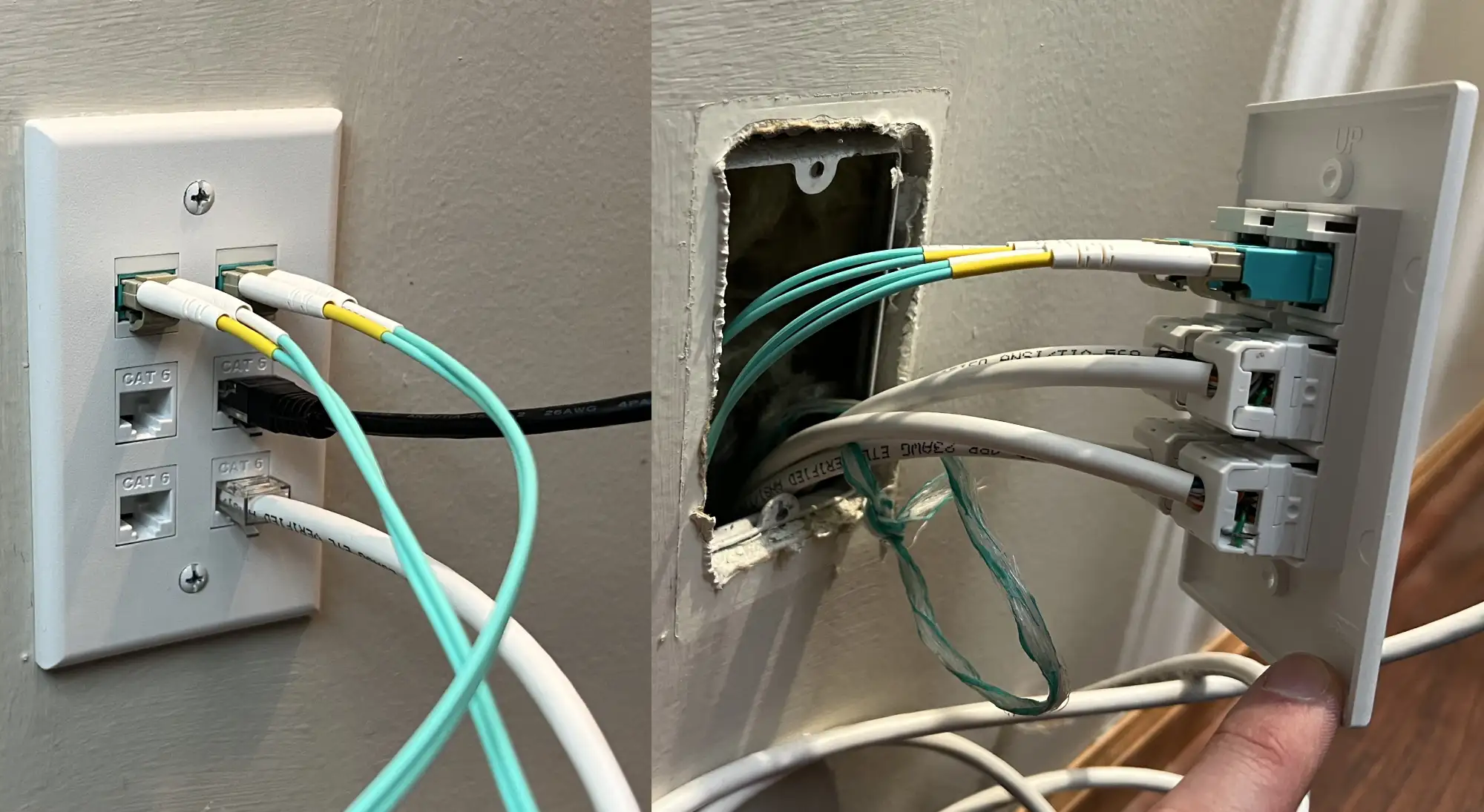
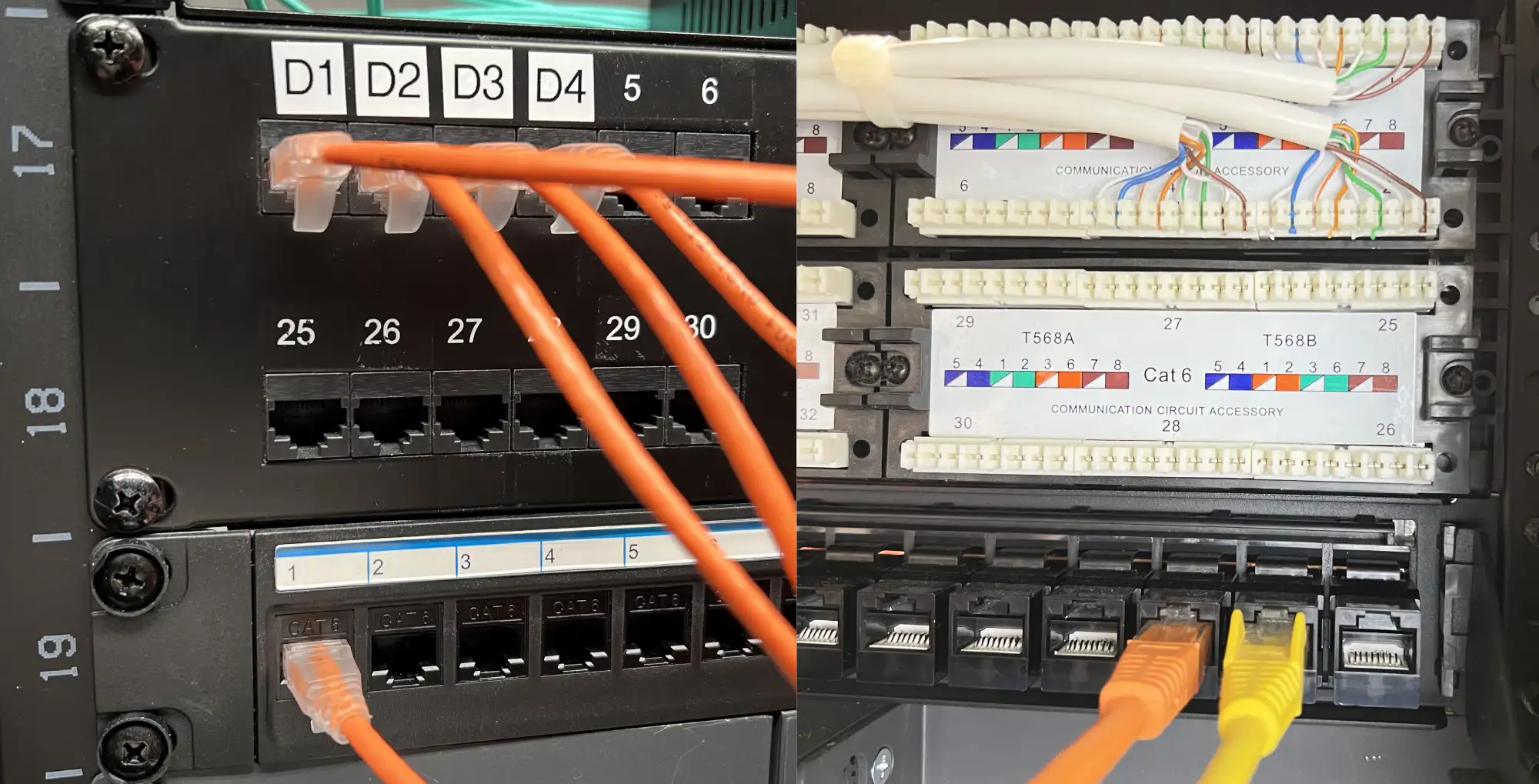
A punch panel requires punching down the cables. This is the strongest connection and most permanent option. A feed-through panel uses standard rj-45 connections on both sides for easy "pass through" operation. These are way more convenient and I like to use them for the devices within the rack.
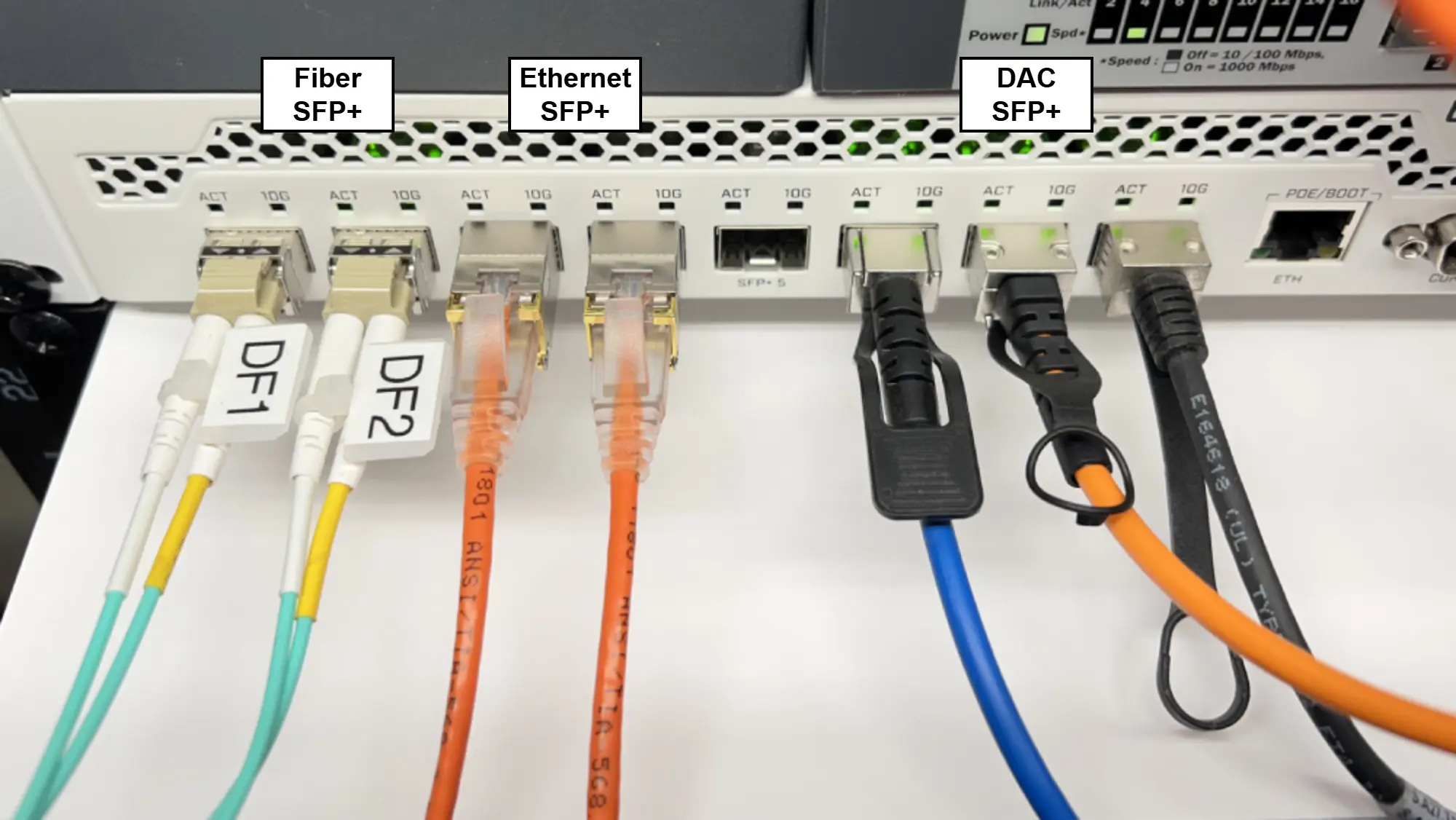
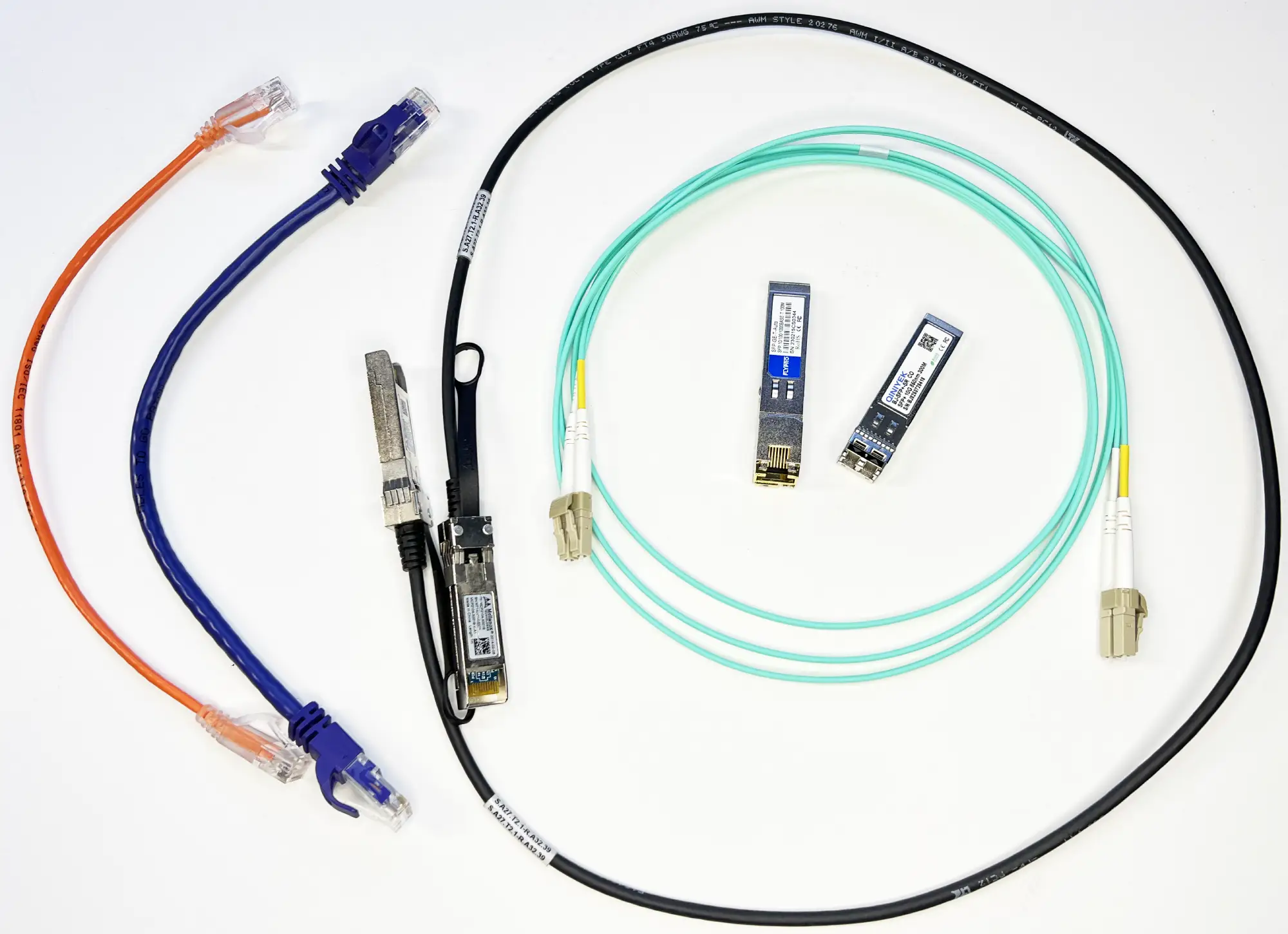
Other cable types such as Fiber and DAC have specific uses as well. These types use "SFP+" ports. "SFP" supports a 1 gigabit connection and "SFP+" is for 10 gigabit speeds. Newer SFP+ 10g ethernet multi-gig rated devices also support 2.5gbe and 5gbe.
DAC = Direct Attached Copper. These cables use 2 copper wire pairs to transmit signals. Passive DAC's take very little power and can go a max length of 7 meters. DAC cables offer lower latency than ethernet and even fiber! Active DACs are available for lengths beyond 7m. DAC cables are the cheapest, fastest, and most power efficient 10gig cabling option, and I use them extensively in my homelab.
One aspect of SFP devices is they can be vendor-locked for some enterprise gear. Cisco is most famous for rejecting non cisco branded SFP devices. There are various workarounds to this and you can purchase generic SFP's programmed to be a specific vendor. Do some searching on your switch model before purchasing SFP's.
Network Switches allow you to connect multiple devices together. Most switches are layer 2 devices. This is the MAC layer.
Each device on the network has a unique MAC address programmed in a the factory. When you plug in a new device, the switch learns the MAC address so it knows where to forward packets.
Standard switches are considered "dumb" devices. When a packet comes in, the switch looks at the destination and determines which port to forward the packet out.
Managed switches are "smart" and offer features such as vlans, mirroring, monitoring, and more.
When buying a switch there are many considerations.
PoE is Power Over Ethernet. This allows you to not only send data to a device, but also power it. Wifi radios and Cameras are common PoE devices.
Here is an example of a simple network consisting of an 8-port 10gig switch connected to a 16-port 1gig switch. The 10gig switch is for servers and NAS which can utilize the higher speed. The 1gig switch is for less demanding devices like my Printer and Roku.
A switch can uplink to another switch, and another, and another, and so on. The best practice is to limit how many switches daisy-chain together. With each switch "hop" there is a bit more latency and overhead. If you end up chaining lots of switches together you might be better off investing in a bigger "core" switch.
Since most routers have built in wifi you can also use a router to provide wifi. By disabling DHCP functionality you can leverage any router device as a standalone wifi access point. Disable everything else that you will not be using.
I really like Ubiquiti wifi radios. They are pretty cheap and offer tons of configuration options. You need a "unifi" controller in your network to run ubiquiti wifi radios. You can install unifi as a container or run it on one of their "cloud key" or router devices.
Wifi versioning changed to simple numbers recently. If you already have wifi 6 devices don't rush to upgrade to wifi 7 hardware. At the time of writing, not many devices support wifi 7.
| Generation | IEEE Standard | Released | Max Speed | Frequency Band |
| Wi-Fi 1 | 802.11b | 1999 | 11 Mbps | 2.4 GHz |
| Wi-Fi 2 | 802.11a | 1999 | 54 Mbps | 5 GHz |
| Wi-Fi 3 | 802.11g | 2003 | 54 Mbps | 2.4 GHz |
| Wi-Fi 4 | 802.11n | 2009 | 600 Mbps | 2.4 & 5 GHz |
| Wi-Fi 5 | 802.11ac | 2013/2014 | 1.3 - 3.5 Gbps | 5 GHz |
| Wi-Fi 6 / 6E | 802.11ax | 2019/2021 | 9.6 Gbps | 2.4, 5, & 6 GHz |
| Wi-Fi 7 | 802.11be | 2024 | 46 Gbps | 2.4, 5, & 6 GHz |
The most important consideration with wifi is placement of the access point. There's lots of fancy software that can analyze signal strength, but some common sense gets you pretty far.
Place your access points in the center of your house or such that the distance to the devices or locations most commonly used is minimized.
Multiple access points placed strategically so they cover all living spaces and don't overlap is the ideal setup.
The "mesh" wifi setups are getting better, but will never be as good as a hardwired solution. Range extenders also do not provide an optimal experience but can help in a pinch.
Wifi is an entire topic on it's own for tuning deployments with channel optimization, positioning, guest networks, and more. Get yourself a wifi scanner like NetSpot to monitor congestion and signal strength to dive deeper into the topic.
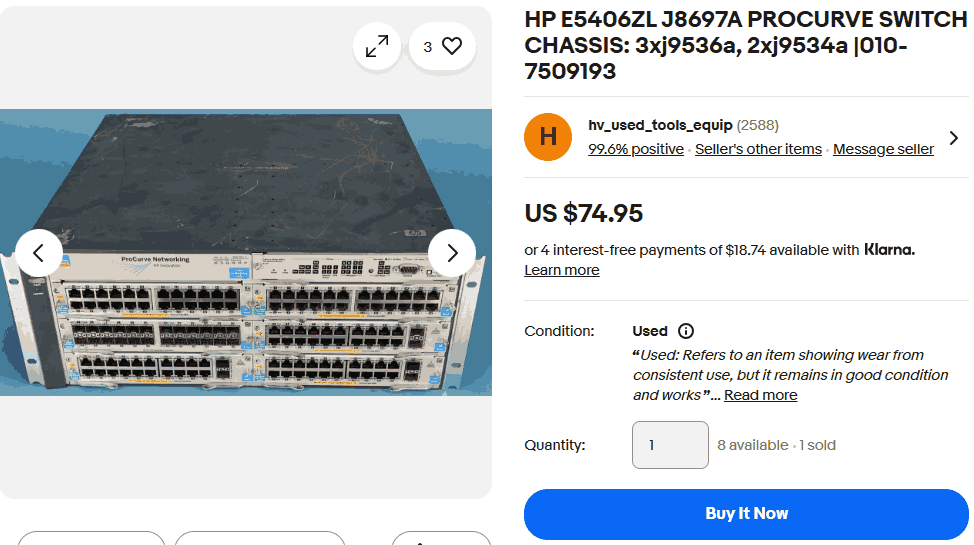
Would you be surprised that you can get a 144-port switch on ebay for $75? The best feature is the modularity - you can swap out any of the cards for various capabilities. Unfortunately these are mostly 1gig ports. Nowadays high performance homelabs are pushing 25gig.
The point is - this is one of many examples of hardware available that used to cost tens of thousands of dollars for less than pennies on the dollar. Enterprise gear is built with the most reliable components possible. HP has a lifetime warranty on these parts for a reason.
Can you spot this switch somewhere else on this page?
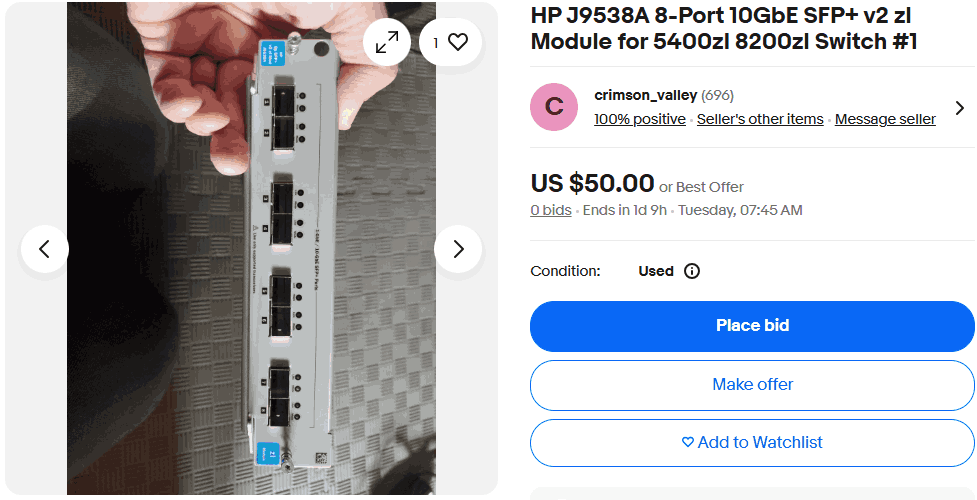
Adding a 8-port 10gig module for another $50 gets you a fairly cheap 8-port 10gig switch with serious management capabilities.
Keep in mind if you buy a 48-port switch and only use a handful of ports, you are paying the electric company for those unused ports. For this reason, I try to buy somewhat modern hardware a few generations back where the price to performance ratio is ideal.
Since enterprise gear is designed to mount in network racks in server closets - noise is not a design concern. 1U servers are famous for fans that sound like jet engines. Keep in mind if you will be running your gear somewhere like a bedroom.
Likewise that server with 512GB of ram might look tempting at first, but unless you have an actual use for that ram it's just a fancy heater costing you money.
It's important to right-size your gear for power and cost optimization.
The brand names on amazon are totally bizarre, but that doesn't mean they are bad products. (But maybe bad support!) This is because everything has become commoditized and ultimately we get decent products for cheap.
The most recent addition to my homelab network is a Terow 2.5gig switch with PoE. I added this device because I was getting a second PoE wifi radio and also looking to expand to some PoE cameras in the future. Buying small switches as needed is a cost effective strategy to organically grow your homelab network.
https://www.amazon.com/Terow-2-5G-PoE-Multi-Speed-Compatible/dp/B0CGDF35P1 ($70 at time of writing)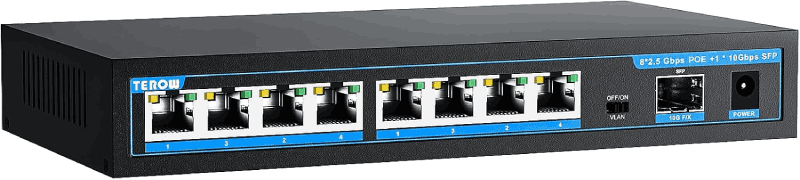
These switches are based on common Realtek chipsets. Ubiquiti's Flex 2.5G line of switches ($199 no power adapter + $79 power adapter = $278) use the same chips, confirmed by this ServeTheHome review.
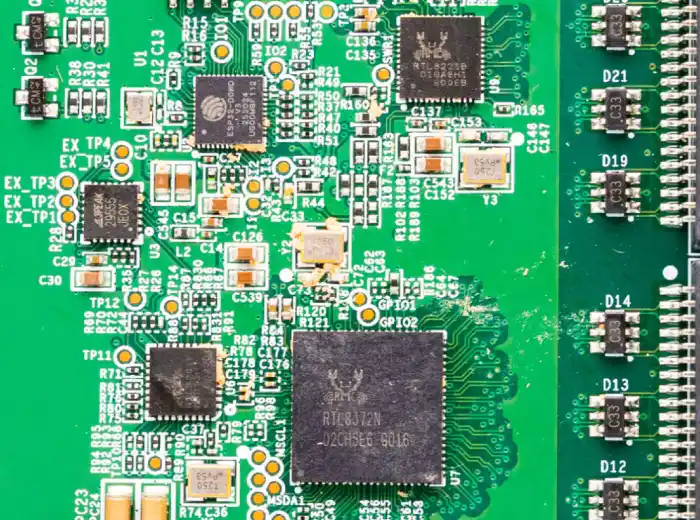
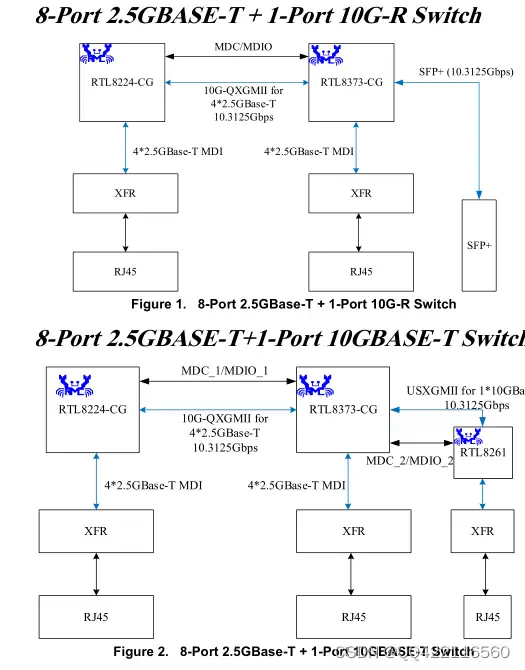
Opening up the device we can see the main chips connect together just like the above picture. Since these devices are very simple there is not much room for treachery. You cannot get "hacked" by a simple unmanaged "stupid" switch. Managed switches and routers are a different story.
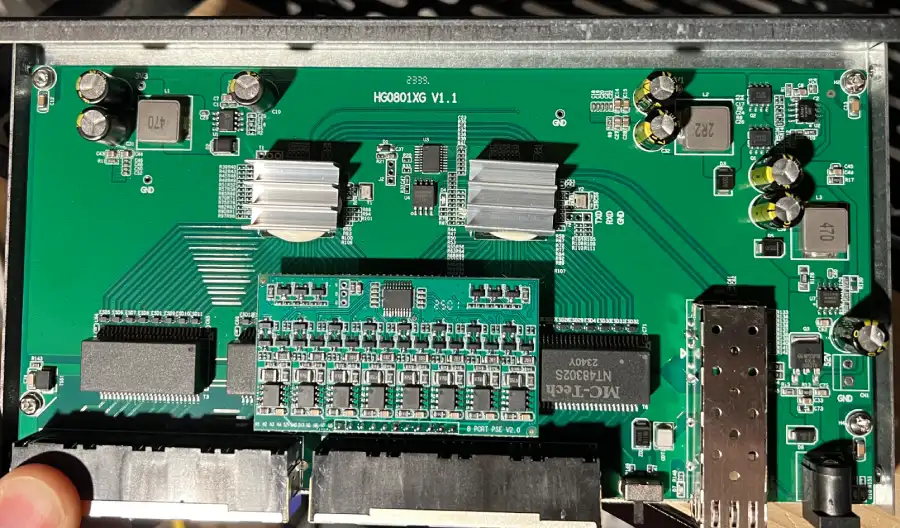
The PCB is marked with HG0801XG which an internet search leads to IENRON as the company who designed this board. IENRON 8 port 2.5gbe switch review here.
Check out this article for an overview of several cheap 2.5gbe switch options: The Ultimate Cheap Fanless 2.5GbE Switch Buyers Guide
I find 2.5gig switches to be a great balance of price & performance. I am hopeful in the next 5 years 5gig switches will become just as common. 10gig ethernet switches are still pretty expensive, but also very power hungry. Recent standards have looked to reduce power consumption by measuring cable lengths and adjusting power levels automatically.
In summary, the cheap switches ($70) use the same chips as the expensive switches ($278) so buy the cheap chinese versions if you are cost conscious. If you want some peace of mind buy the versions from major brands like Netgear, Trendnet, TP-Link, Ubiquiti, MikroTik. You will likely get better warranty support with the major brands.
There are many elements from corporate setups that can be brought into the homelab. While enterprise infrastructure pieces are usually mega expensive, they pop up on facebook often. Small businesses tear down networks all the time. It's easy to grab a 2-post network rack or server cabinet for 10% of the original price.
Cable managers and velcro make everything look very tidy. D-Rings and Wire Baskets also work well for cable management.
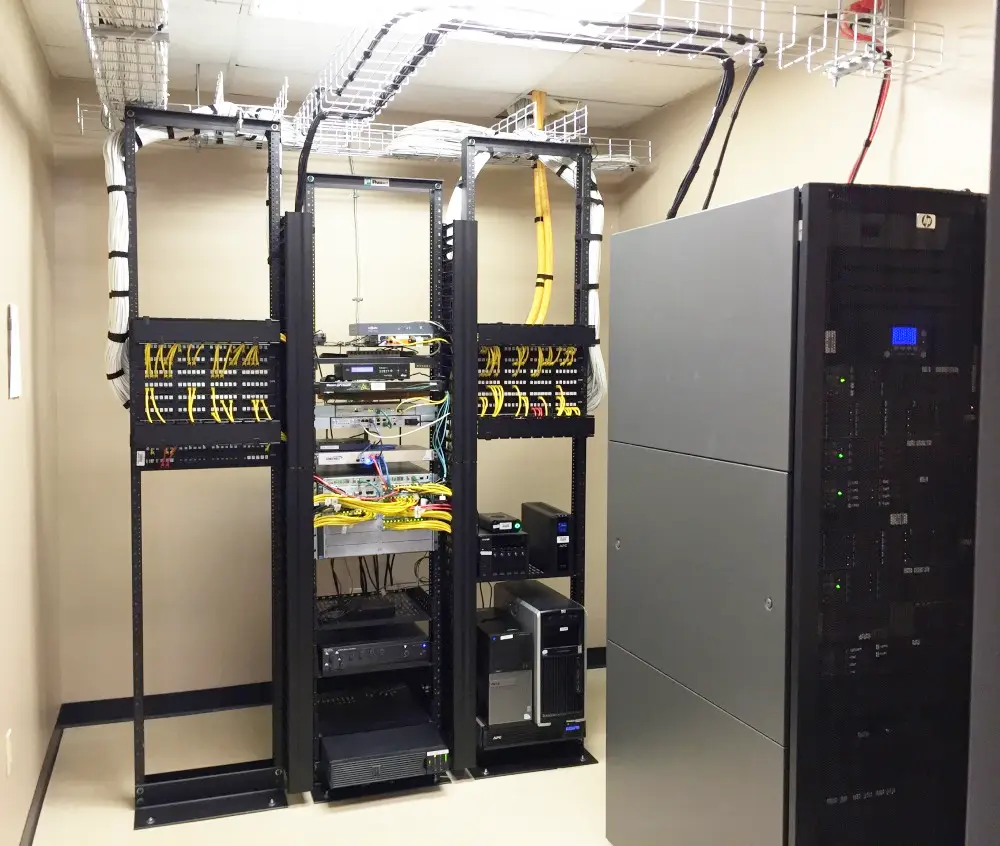
This is my homelab network as of late 2025. I find a 2-post network rack is a great balance of size and features. Shelves of all shapes and sizes can accomodate any type of hardware you have. Many switches have rack mounting ears or have 3d printable accessories for rack mounting. The Terow switch did not, but a shelf with zip ties keeps it nice and secure. Tons of random accessories are available so you can have fun tailoring everything to your unique situation.
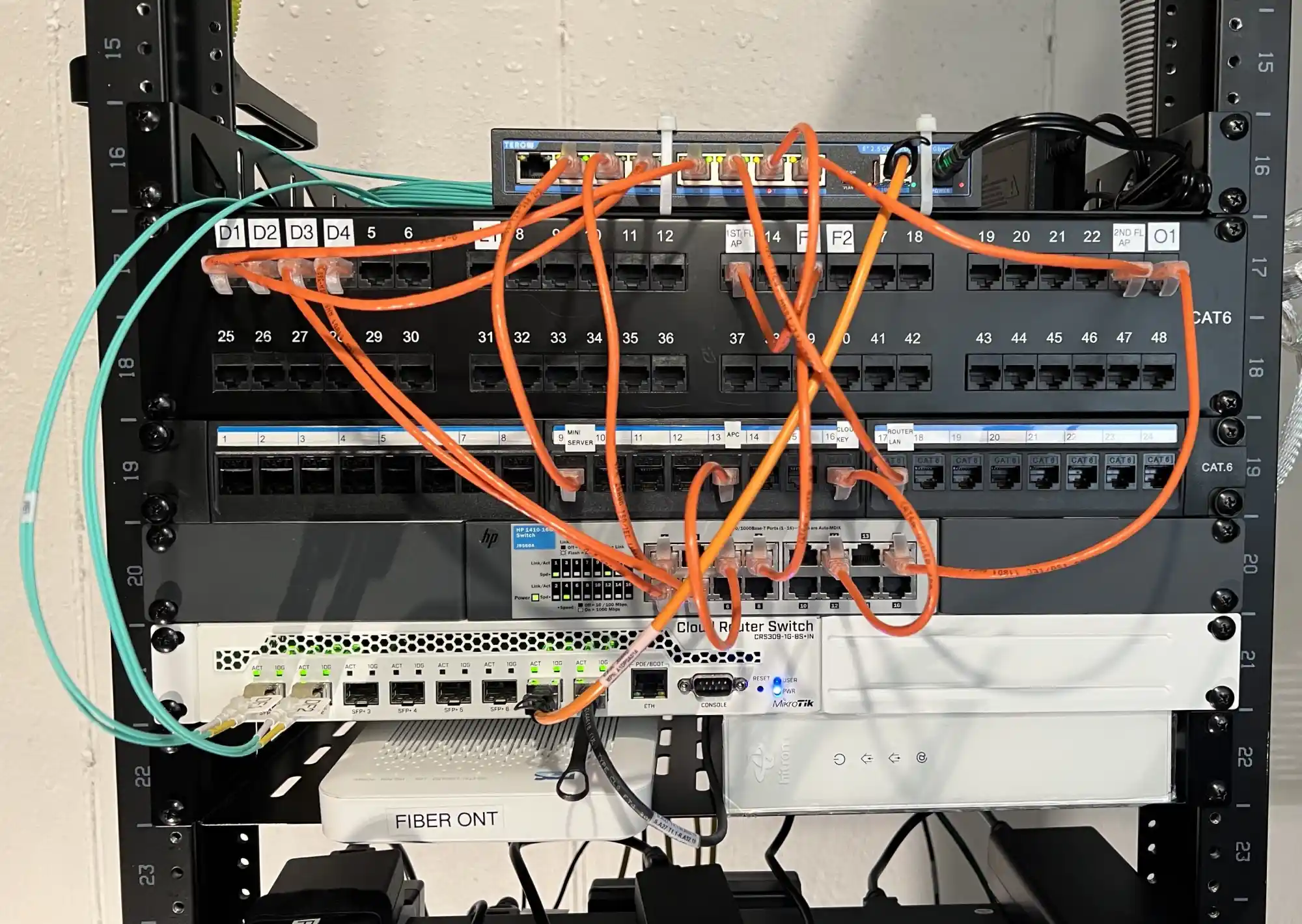
One of the more useful additions to my rack was a junk drawer! Having storage for the random cables, adapters and tools is very helpful. Vevor and other random chinese manufacturers make lots of decent quality server rack accessories.
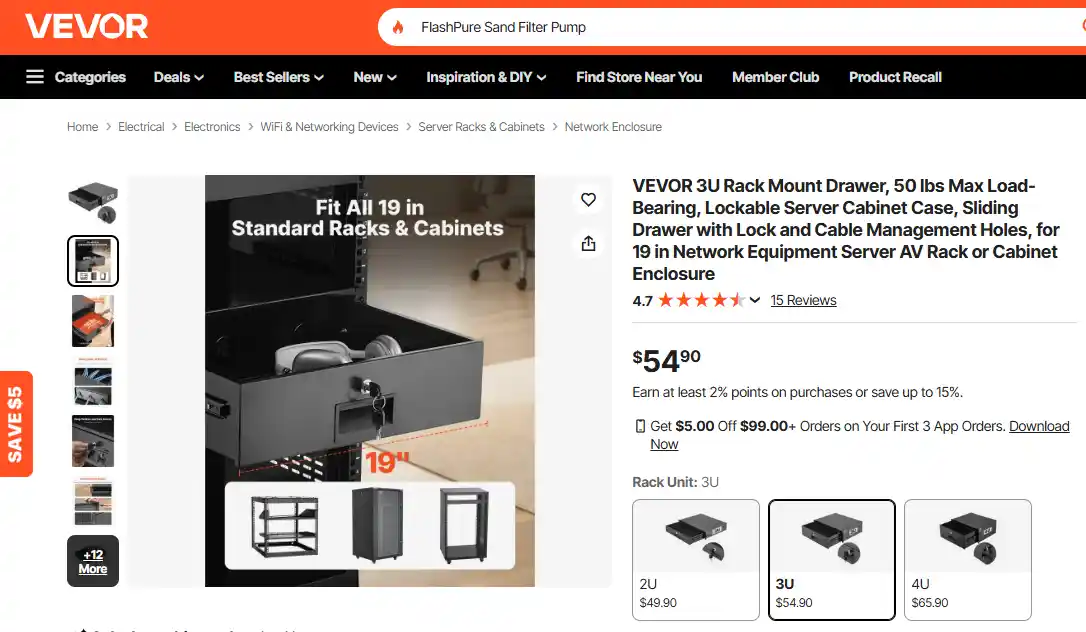
If you have a large basement the large rack is great, but what if you don't have a lot of space? 2-post racks come in all sizes and can even be cut down. I considered mounting mine from the basement cieling to save floor space. Check out other options such as wall-mounted enclosures, in-wall media boxes, lackracks, and 10-inch racks.
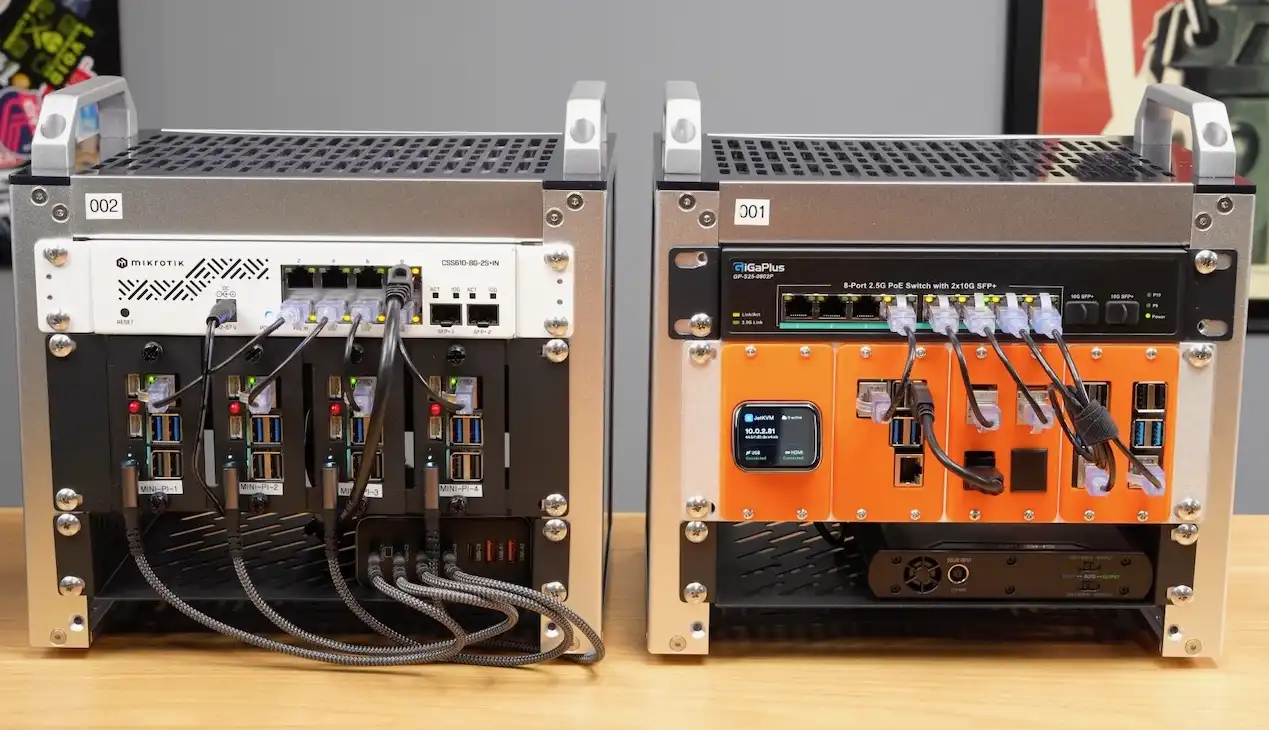
10-inch mini racks have become popular lately with lots of products readily available on amazon. These are great for a cool looking compact homelab. Jeff Geerling put together a great article on this topic
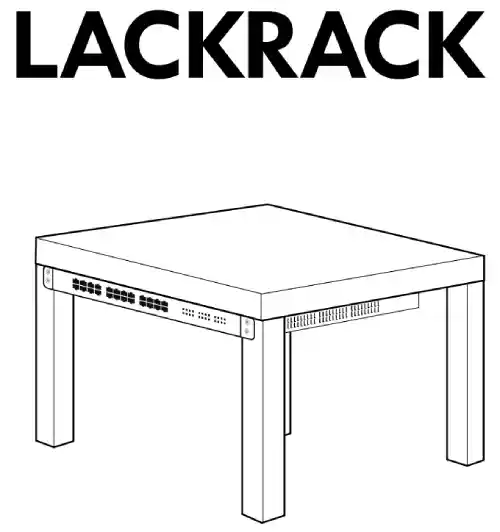
IKEA sells a cheap side table named "Lack" that is just the right width to mount 19" server hardware. There is a entire wiki dedicated to this topic!
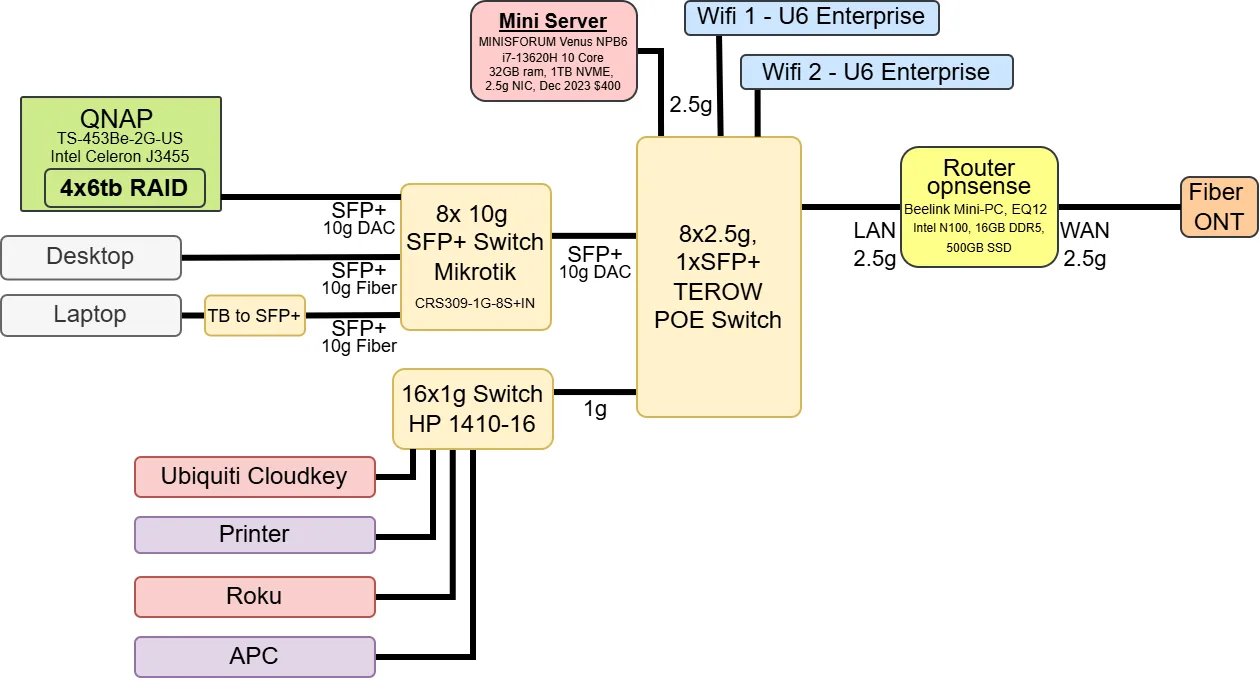
Complex topics can be made easier with planning and diagramming! I use Draw.io to make simple diagrams like the one shown below.
This diagram shows all the devices in my homelab network. It is helpful to note the models, port speeds, and sometimes ip addresses to plan everything out.
For your homelab network you have to pick what addresses you want to use for your network.
Pick from these blocks of reserved "Private addresses", per RFC1918:
If you use vlans in the future - note that each vlan gets it's own subnet.
| Name | CIDR block | Address range | Number of addresses |
Classful description |
|---|---|---|---|---|
| 24-bit block | 10.0.0.0/8 | 10.0.0.0 - 10.255.255.255 | 16,777,216 | Single Class A |
| 20-bit block | 172.16.0.0/12 | 172.16.0.0 - 172.31.255.255 | 1,048,576 | Contiguous range of 16 Class B blocks |
| 16-bit block | 192.168.0.0/16 | 192.168.0.0 - 192.168.255.255 | 65,536 | Contiguous range of 256 Class C blocks |
The subnet mask is a bitmask used to denote the network portion of the ip address. It is commonly represented in octet notation like 255.255.255.0.
"CIDR" aka "/" or "slash" notation is another way to represent the subnet mask. CIDR notation is simply the number of bits in the subnet mask.
To keep things easy, I recommend using /16 or /24.
/16 is equivalent to 255.255.0.0
/24 is equivalent to 255.255.255.0
You can use a subnet calculator to figure out tricky network masks.Router IP: 192.168.44.1
Subnet Mask: 255.255.255.0
CIDR Notation: 192.168.44.0/24
Static Address Range: 192.168.44.2 to 192.168.44.99
DHCP Range: 192.168.44.100 to 192.168.44.254
When a computer boots up, or you plug in a network cable, or connect to the wifi - the first thing your device does is send a DHCPDISCOVER broadcast. This is sent to all devices on the local network segment to announce "Hey I'm new here - what do I do?". If your router runs a DHCP service it will respond with "yea I'm the router, set me as your default gateway - give yourself this IP address, and use these DNS servers btw".
Your DHCP service will be configured to hand out IP's from a range of addresses. IP addresses may be assigned randomly or sequentially.
If you run a Windows Server Domain Controller, you can enable the DHCP & DNS services on that server and disable these services on your router.
You should only have 1 DHCP server running per network segment. If you are playing with multiple routers you may see some weird behaviors if 2 DHCP servers are active.
The D in DHCP stands for Dynamic. DHCP leases expire and will cause the IP addresses of your devices to change over time.
Manually setting the IP of a device is called a static IP. All of your important devices should use static addresses.
Don't use a static IP from within your DHCP range. Allocate a portion of your network for static devices.
The Domain Name System aka DNS does it's magic when you type google.com into your browser. DNS translates google.com to the IP address of the server where google operates. Some routers will run DNS locally as a cache and forward requests to an upstream DNS server.
There are many popular public DNS providers. Cloudflare and Google are my preferred DNS, mostly because they tend to be the fastest. DNS providers may offer features such as blocking known malware domains.
DNS servers should be considered carefully from a privacy standpoint. Think about what DNS does - you ask it how to get to a specific website. This means whoever runs your DNS gets to see a list of the websites you visit. While they cannot see the actual traffic, the list of websites your home visits is valuable marketing data. Don't think for a second that google and cloudflare are running these services out of the kindness of their hearts.
One homelab projects is to build your own DNS server that operates off of root hints to avoid this common privacy violation.
You can configure the DNS server on your devices directly if you are using static addressing or you can configure the DNS server at the router which in turn tells your devices which DNS to use via DHCP.
Port forwarding allows you to expose services you run on your internal network to the public internet. Always consider the security implications of doing so! Some example services requiring port forwarding are running your own plex server, minecraft server, or web server.
Different vendors may use different terms for port forwarding and configuring it may be slightly different between devices. RTFM for your device.
There are several solutions when you are unable to port forward. Check out Ngrok and Cloudflare Tunnels
After you setup services in your homelab and setup the port forwards and firewall rules, then you can use your public IP address to access those services!
However it's a whole lot easier to remember a domain like "home.myawesomedomain.com" rather than a numeric IP address like 172.253.63.100. This is where DNS comes in.
Domains are purchased from a registrar such as NameCheap, Porkbun, Cloudflare or Godaddy. I recommend NameCheap.
Most registrars offer free domain DNS hosting and will allow you to create DNS records.
Creating an "A" record will allow you to point your new domain "home.myawesomedomain.com" to your IP "172.253.63.100" and you will never need to memorize your IP.
Sometimes your router's public IP will change. This can happen when your modem or router is powered off for a while or when your ISP performs maintenance or upgrades.
This problem was solved long ago with "dynamic dns". This consists of a program that monitors your public IP and automatically updates the DNS when a change occurs.
Dynamic DNS is a common router feature. OPNsense has a module for this. I use namecheap for my domains, and luckily namecheap is supported out of the box.
Generate an API key on namecheap's admin panel, plug the desired domain and api key into the OPNsnse config and now you can reach your home IP via a friendly domain name and your router will keep it updated automatically!
Do you want to remotely access services running in your homelab, WITHOUT port forwarding and exposing them to the world? A Virtual Private Network or VPN is one solution.
Wireguard is the gold standard open source VPN right now. A VPN tunnels traffic over an encrypted connection in such a way that you can access any devices on your network as if you were connected to the local network.
There is a narative that VPN's are old school technology and you need to use something else now. I find this to be false, but regardless there are several alternatives that have different capabilities.
Tailscale is one example that uses "overlay networks". In reality this is using wireguard behind the scenes, but has several interesting features added on top.
When you connect a bunch of switches together you have one big "flat" network where all devices connected can talk to eachother.
Should your Alexa device be able to communicate with your network storage? Does your iot thermostat need to reach all your servers? I vote NO!
VLANs operate by either "tagging" traffic with a vlan id so only the devices with the same vlan id can communicate or if you have a managed switch each port can be designated to use a specific vlan id.
Each VLAN is it's own network so you need a router to pass traffic between vlans. Your router will be configured to talk to all the vlans.
An enterprise device called a layer 3 switch can also perform inter-vlan routing. A layer 3 switch is essentially a basic router.
Firewall rules can be used to allow specific traffic between the vlans so you have control exactly which devices can communicate with eachother.
VLANs introduce challenges with airplay and screen casting since they required broadcast packets. Broadcast packets do not pass between the networks- also called broadcast domains. Your router can be configured to "rebroadcast" to resolve this.
Overall, vlans are an advanced topic you should leave for after you have a good handle on your basic network setup.
NAT is short for Network Address Translation. This is the mechanism to share one public IP (either IPv4 or IPv6) with multiple devices behind a router. The router transparently handles NAT for you. You don't need to think much about NAT unless you're trying to do something tricky.
The important thing to know about NAT is if you are behind a NAT at the carrier level (so-called Carrier-Grade NAT or CGNAT) you usually cannot enable IPv4 port forwarding. Most cell phone carriers use CGNAT and likewise T-Mobile 5G home internet does too. Starlink is another major carrier known to use CGNAT. This is usually due to the carrier using IPv6 for their core infrastructure.
Apparently we ran out of public IPv4 addresses a while ago, but somehow it doesn't seem to be a problem. This is due the the widespread deployment of CGNAT and NAT64 technologies bridging the gap.
NAT comes in many flavors, read the wikipedia if you're curious. These come into play with advanced peer-to-peer topics.
In an IP Range there are some special addresses to be aware of.
The first address, ".0", represents the network itself so the first usable address will end in ".1". I like to use the first address for the router.
The last address, ".255", is the broadcast address and cannot be used.
Fiber is a very dense topic covering core sizes, connectors, polishing types - it's very intimidating.
Luckily, at this point in time you can stick to the products found on Amazon. The most common flavors are readily available.
The first choice is multi-Mode (MM) vs Single-Mode (SM). MM is typically orange or aqua jacketed. MM OM3 is rated for 300 meters at 10gig.
Single-Mode (SM) is commonly yellow jacketed and is rated for 80 kilometers at 10gig.
Simply put, MM is for indoor / short runs and SM is for outdoor / long runs. Read more at FS.com about OM1, OM2, OM3 differences.
Fiber can be purchased as custom assemblies with different connector types and lengths. For example direct burial, armored, outdoor aerial, single pair, multi-pair, and they can even include an integrated pulling eye. I have had good luck purchasing from CablesPlus for custom assemblies.
The most common fiber patch connector (pictured here) is LC UPC. There are many different types of fiber connectors so be careful when purchasing. All your connector types and polishing types must match!
The barrier to entry with fiber used to be cost. Now SM and MM transceivers cost roughly the same. For new installs you should evaluate if SM is the future proof approach.
An IPv4 address looks like this: 172.253.63.100
An IPv6 address looks like this: 2607:f8b0:4004:c08::65
These are the IP addresses for Google.com
When you get an IP address via DHCP I am actually referring to an IPv4 address. However, your device may also get an IPv6 address.
IPv4 uses 32-bit addressing. This means there are 4.2 billion total addresses available. When IPv4 was invented it was not expected to be so popular and IPv4 allocations were depleted. IPv6 is the solution which allows for more possible addresses than grains of sand on earth. As of 2026, Google shows 50% of access to their services is via IPv6.
To connect to IPv4 websites from IPv6 infrastructure you use a gateway and a translation technology called NAT64.
Notably IPv6 is well supported by Xfinity. Many mobile providers use IPv6 like Verizon. You can test and play with IPv6 connectivity with websites such as Test-IPv6.com
IPv6 is a fun topic worth understanding, but is beyond the scope of this article. Personally, I tend to disable ipv6 on my homelab network interfaces because I have run into various issues over the years.
2026-04-19 Initial publication
2026-04-19 DAC, SFP, VLANS